
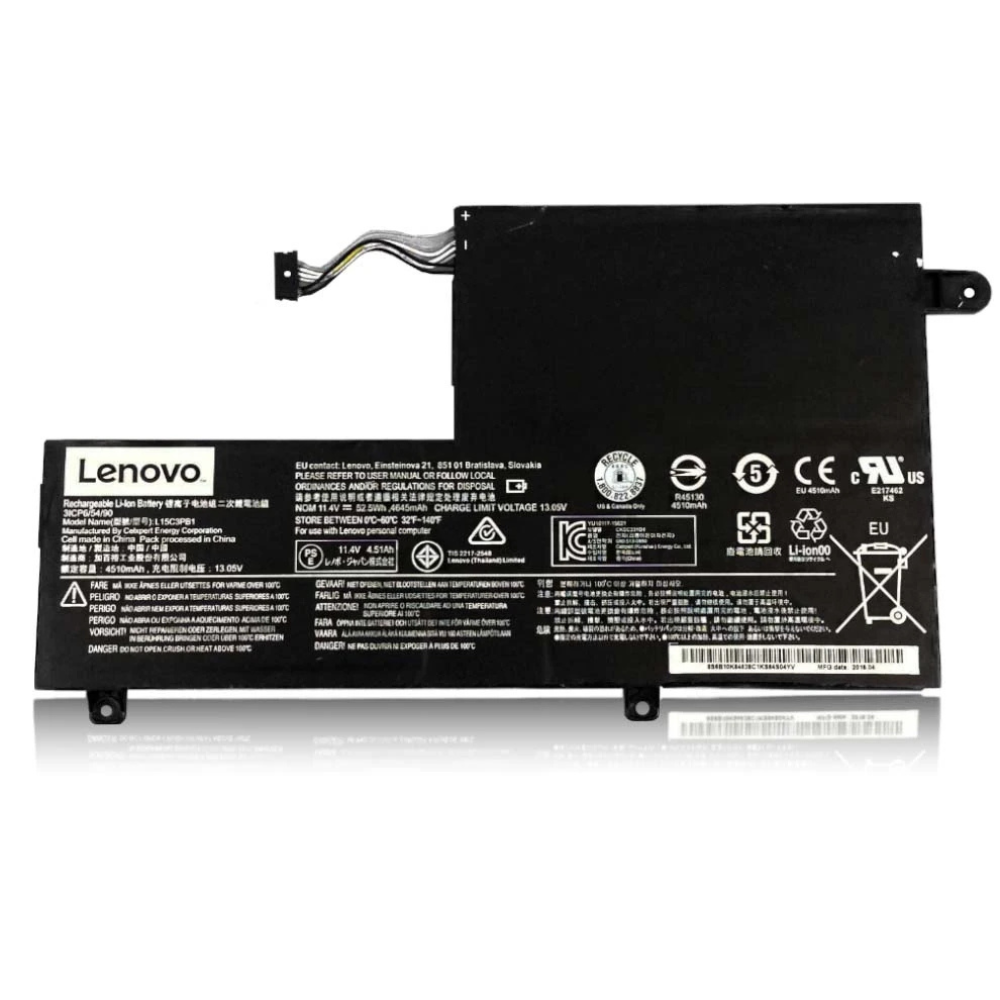
Best Lenovo ThinkPad X280 Battery Replacement Singapore
Is your business productivity stalling due to a failing ThinkPad battery?
The ThinkPad X280 is a legendary road warrior, known for its ultra-portability and robust performance. However, unlike its predecessors, it relies entirely on a single internal battery. When this battery degrades, your mobility is instantly compromised. At StarLabs Singapore, we provide genuine-grade battery replacements that restore your X280 to its all-day battery life potential, ensuring you never miss a deadline.
- Supported Models: Lenovo ThinkPad X280 (Type 20KE / 20KF)
- Service Time: 30 – 45 Minutes
- Warranty: 6 – 12 Months
- Location: Bugis, Bedok, Bukit Panjang, Queen St
Model Spotlight: The Evolution of the X-Series
The ThinkPad X280 marked a significant departure from the classic X270 design. To achieve a thinner, lighter chassis (just 1.13kg), Lenovo removed the “Power Bridge” dual-battery system. This means you no longer have a hot-swappable external battery.
Why Battery Health is Critical for the X280:
- Single Point of Failure: With only one internal 48Wh battery, there is no backup cell to keep the system running if the main battery fails.
- Rapid Charge Dependency: The X280 supports Rapid Charge (80% in 1 hour). A degraded battery often loses the ability to handle this high-speed current, resulting in slow charging.
- Thermal Constraints: As a compact ultrabook, the battery sits close to the CPU. Heat exposure over years can accelerate chemical degradation.
X280 vs. Predecessors: What Changed?
| Feature | ThinkPad X280 | ThinkPad X270 | ThinkPad X390 |
|---|---|---|---|
| Battery Setup | Single Internal (48Wh) | Internal + External (Bridge) | Single Internal (48Wh) |
| Replacement Difficulty | Moderate (Must open case) | Easy (External swap) | Moderate |
| Charging Tech | USB-C Rapid Charge | Standard Slim Tip | USB-C Rapid Charge |
Critical Signs Your X280 Battery is Failing
Business laptops like the X280 are often used plugged in for long hours, which can mask battery issues until you are on the move. Watch out for these red flags:
1. The “Plugged in, Not Charging” Error:
If your battery stays stuck at a certain percentage (e.g., 45%) despite being plugged in, a cell within the battery pack may have died. This is common in batteries that are over 3 years old.
2. Sudden Shutdowns at 20%:
Does your laptop die instantly when the meter hits 20% or 30%? This indicates “voltage sag,” where the aging battery can no longer deliver the consistent power required by the Intel 8th Gen processor during peak loads.
3. Trackpad or Keyboard Difficulty:
On the X280, the battery sits directly under the palm rest and trackpad. If the battery begins to swell (a safety hazard), it pushes upward, making the trackpad hard to click or causing the keyboard to bulge. If you notice this, stop using the device immediately and book a replacement.
Optimizing for the Road Warrior: After Replacement
Once we install a fresh battery in your ThinkPad X280, you can further extend its daily lifespan by utilizing Lenovo’s intelligent power features:
- Lenovo Vantage Thresholds: If you work mostly at a desk, set a charge threshold in the Lenovo Vantage app to stop charging at 80%. This prevents the high-voltage stress that occurs at 100%, significantly prolonging the chemical life of your new battery.
- USB-C Power Management: The X280 uses USB-C PD (Power Delivery). Ensure you are using a genuine 45W or 65W charger. Using under-powered phone chargers can cause the battery to drain even while plugged in.
DIY Guide: How to Replace a ThinkPad X280 Battery
Note: This guide is specific to the ThinkPad X280. Unlike older models, you must open the chassis to access the battery.
⚠️ Disclaimer: ThinkPads are durable, but internal components are sensitive. Always disable the built-in battery in the BIOS before opening the case (Config -> Power -> Disable Built-in Battery) if possible. StarLabs is not responsible for damage caused during DIY attempts.
Tools You Will Need:
- Standard Phillips #1 Screwdriver (The X280 uses captive screws)
- Plastic Pry Tool / Spudger
- Anti-static wrist strap
Step 1: Preparation
Ensure the laptop is completely powered off and unplugged. If you haven’t disabled the battery in BIOS, ensure you do not drop any metal screws on the motherboard during the process.

Step 2: Remove the Base Cover

Turn the X280 upside down. Loosen the 5 captive screws securing the base cover.
Note: These screws are designed to stay attached to the cover, so they won’t fall out. Just loosen them until they click.
Step 3: Unclip the Case

Start prying from the rear edge near the hinges. The X280 clips are tight. Slide your spudger along the sides to release the latches. Lift the cover away to reveal the internal components.
Step 4: Disconnect the Battery (Safety First)

Locate the battery connector on the motherboard (multi-colored wires).
Action: Gently pull the connector block towards the battery to unplug it. Do not pull up; pull horizontally.
Step 5: Swap and Reseal

Remove the screws securing the battery frame. Lift out the old unit. Insert the new battery, screw it in, and reconnect the plug firmly.
Step 6: Reassemble

Snap the bottom cover back into place, ensuring all clips engage. Tighten the 5 captive screws. Connect your AC adapter to deactivate the “Shipping Mode” and wake up the new battery.
Unsure about opening your ThinkPad?
The X280 clips can be stiff, and the internal connector is fragile. Let our technicians handle it safely.
Frequently Asked Questions
Can I install a larger battery in my ThinkPad X280?
No. Unlike the older X270, the X280 has limited internal space and only supports the specific 48Wh form factor designed for its chassis. There is no “extended” battery option that fits inside the case.
How much does a ThinkPad X280 battery replacement cost?
Genuine-grade replacements typically range between $XX and $XX SGD. Price depends on the availability of the specific FRU (Field Replaceable Unit). Contact us via WhatsApp for a live quote.
Will the new battery support Lenovo Rapid Charge?
Absolutely. Our batteries are fully compatible with Lenovo’s Rapid Charge firmware, allowing you to charge from 0% to 80% in approximately one hour using your 65W USB-C charger.
Is the X280 battery the same as the X1 Carbon?
No, they are different. While both use internal connectors, the dimensions and mounting screw positions are different. Always use the model-specific battery (FRU 01AV470 or compatible) for the X280.
How long does the repair take?
The ThinkPad X280 is designed to be service-friendly. We can complete the replacement in 30 to 45 minutes at our StarLabs service centers.
