
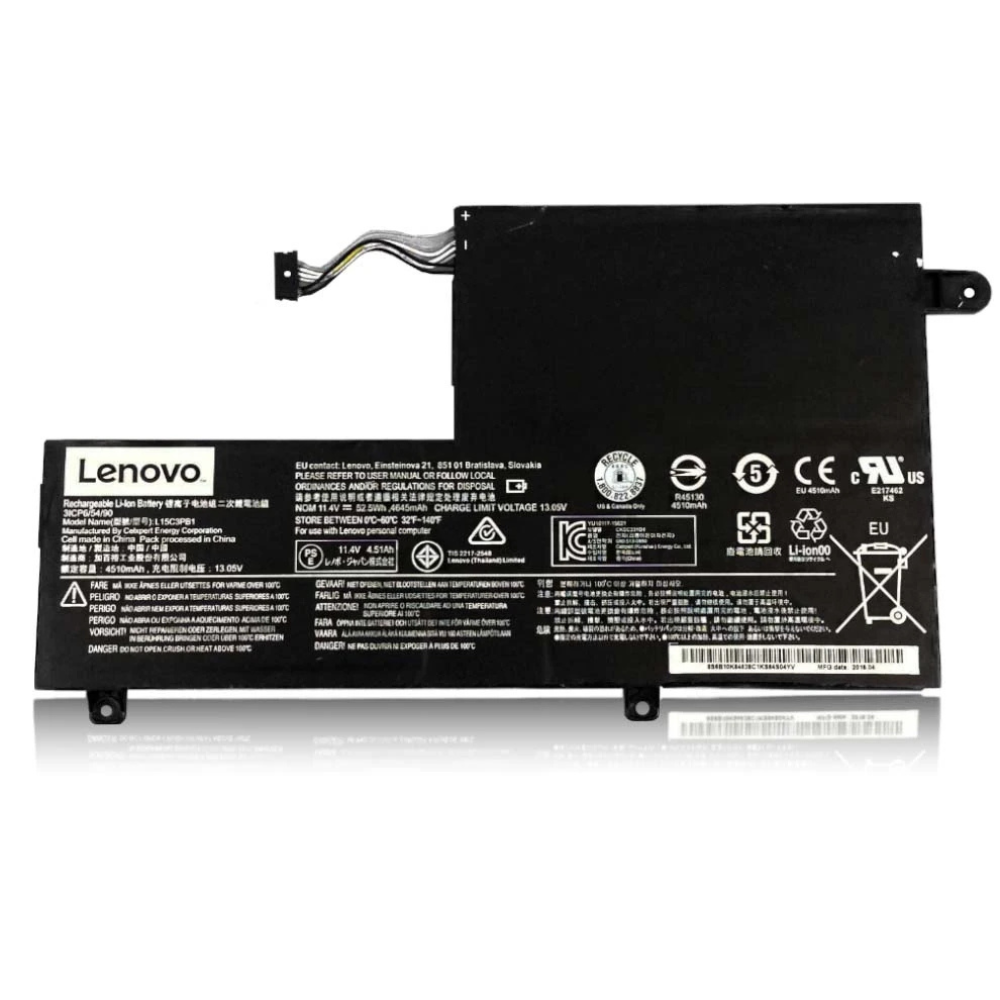
Best Lenovo ThinkPad T14 Gen 3 Battery Replacement Singapore
Is a weak battery limiting your hybrid work potential?
The ThinkPad T14 Gen 3 is the workhorse of the modern corporate world, bridging the gap between office durability and remote portability. However, heavy daily use—especially with Teams calls and VPNs—can degrade the battery quickly. At StarLabs Singapore, we provide enterprise-grade battery replacements that restore your T14 Gen 3 to its full 10+ hour potential.
- Supported Models: ThinkPad T14 Gen 3 (Intel: 21AH/21AJ | AMD: 21CF/21CG)
- Service Time: 45 – 60 Minutes
- Warranty: 6 – 12 Months
- Location: Bugis, Bedok, Bukit Panjang, Queen St
Model Spotlight: Understanding the T14 Gen 3 Variations
Unlike many other models, the ThinkPad T14 Gen 3 was shipped with **two different battery capacity options**. Identifying which one you have is crucial for understanding your expected battery life.
Which Battery Do You Have?
- Option A (Standard): 39.3Wh (3-Cell). Lighter weight, but shorter runtime. Common in bulk corporate deployments.
- Option B (High Capacity): 52.5Wh (4-Cell). Provides ~30% more runtime.
- Tech Specs: Both support Rapid Charge (80% in 60 mins) using the 65W USB-C adapter.
Comparison: T14 Gen 3 vs. Predecessors
| Feature | T14 Gen 3 | T14 Gen 2 | T14s Gen 3 |
|---|---|---|---|
| Max Capacity | 52.5Wh (Optional) | 50Wh (Standard) | 57Wh (Larger) |
| Replacement | Internal (Screwed) | Internal (Screwed) | Internal (Screwed) |
| Rapid Charge | Yes (Requires 65W) | Yes | Yes |
Is Your Workforce Slowing Down?
A failing battery doesn’t just reduce runtime; it impacts performance. Modern processors like the Intel 12th Gen or AMD Ryzen 6000 series in your T14 Gen 3 rely on stable voltage to boost frequencies.
The “Throttle” Effect
When a battery cannot supply peak voltage (even if plugged in), the laptop’s power management system may aggressively throttle the CPU speed to prevent a crash. If your T14 Gen 3 feels sluggish during Excel calculations or video calls, checking the battery health is a critical first step.
Sudden Drops from 30% to 0%
This is a classic sign of “dead cells.” The software estimates 30% remains, but one of the 3 or 4 internal cells has collapsed, causing an immediate voltage cutoff. This often leads to data loss in unsaved documents.
Hybrid Work: Managing Power on the Go
For T14 Gen 3 users constantly moving between home, office, and cafes, power management is key.
1. Utilize the “Smart Charge” Feature:
Through the Commercial Vantage software, enable the battery charge threshold. Setting a stop-limit at 80% significantly reduces heat stress if you leave your laptop plugged into a USB-C dock all day.
2. Cooling is Key:
The T14 Gen 3 pulls air from the bottom. Using it on soft surfaces (beds, sofas) blocks airflow, raising battery temperature and accelerating degradation. Always use a hard surface.
DIY Guide: How to Replace a ThinkPad T14 Gen 3 Battery
Note: This guide applies to both Intel and AMD variants of the T14 Gen 3.
⚠️ Disclaimer: The T14 Gen 3 uses captive screws and delicate plastic clips. Opening the chassis may void your warranty. Ensure you have the correct replacement part before starting.
Tools You Will Need:
- Phillips Head Screwdriver (#1)
- Plastic Pry Tool (Spudger)
- Anti-static Mat or Wrist Strap
Step 1: Preparation
Save all work. Enter BIOS (F1 on startup) -> Config -> Power -> Disable Built-in Battery. This cuts power to the motherboard for safety. The laptop will turn off immediately.

Step 2: Open the Bottom Chassis

Loosen the mounting screws on the bottom cover. Note: These are “captive” screws, meaning they will loosen but stay attached to the plastic cover. Do not force them out.
Step 3: Unclip the Cover

Use a pry tool to gently lift the cover, starting near the hinges. The T14 Gen 3 has tight clips near the Ethernet port—be gentle to avoid snapping the plastic grille.
Step 4: Disconnect the Battery

Locate the battery connector. Pull the black fabric tab or use a plastic tool to slide the connector block horizontally out of the socket. Do not pull up!
Step 5: Swap and Secure

Remove the 4 screws holding the battery. Lift the old unit out. Place the new battery in, ensuring the alignment pegs fit into the chassis holes. Re-tighten the screws and reconnect the cable.
Step 6: Reset and Calibrate

Clip the bottom cover back on and tighten the screws. Connect your USB-C charger. The laptop will not power on until it detects the charger (this is a safety feature). Charge to 100% before unplugging.
IT Department Too Busy?
We handle bulk repairs and individual walk-ins for T14 Gen 3 units. Get your team back to full power in under an hour.
Frequently Asked Questions
Can I upgrade from the 39.3Wh to the 52.5Wh battery?
In most cases, yes! The physical dimensions are identical, and the 52.5Wh battery fits into the same bay. This is a popular upgrade for users who find the base model battery insufficient for travel.
Will a new battery fix “Plugged in, not charging”?
Maybe. First, check if “Airplane Mode” is on (in power settings) or if a battery threshold is set in Lenovo Vantage. If these are off and it still won’t charge, the battery cells are likely dead and need replacement.
Does this affect my corporate warranty?
Technically, the battery is a CRU (Customer Replaceable Unit) for T-series laptops, meaning Lenovo often allows users to swap it. However, damaging other components during the process can void the warranty. Our professional installation ensures safety.
