
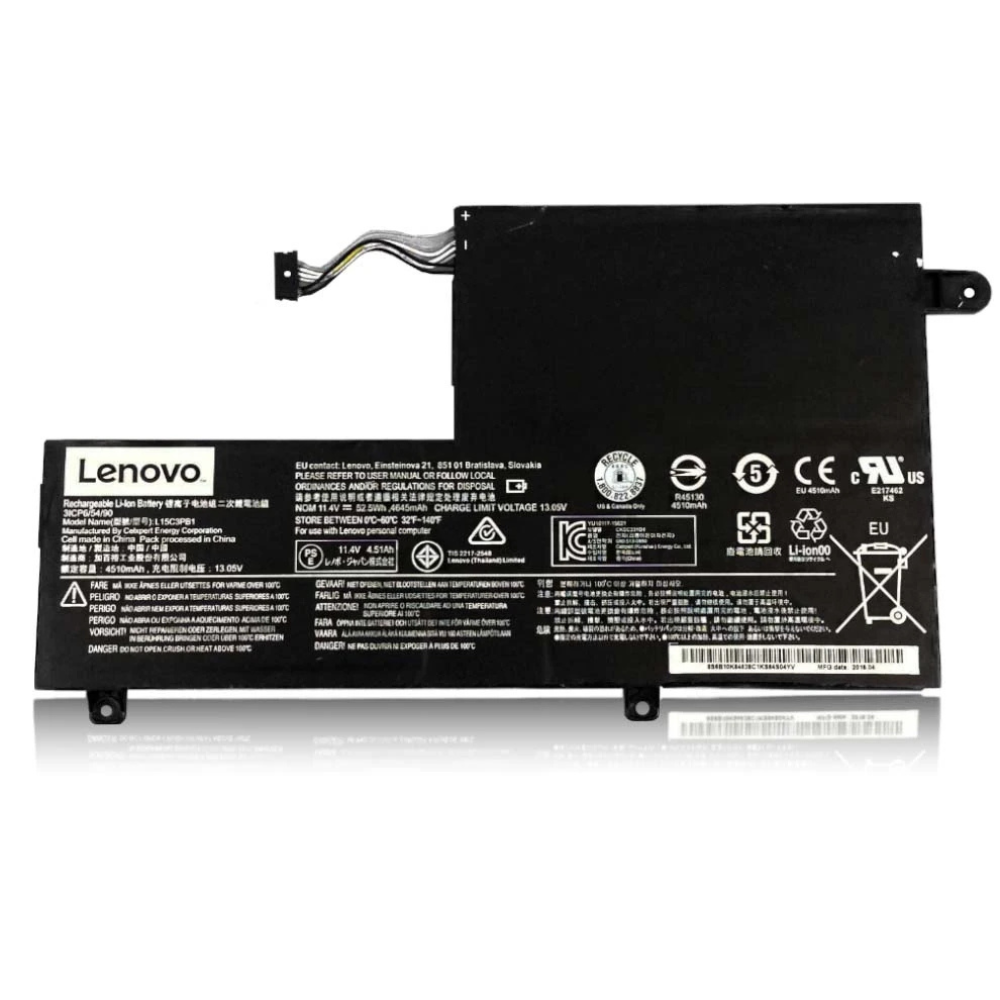
Best Lenovo ThinkPad T14s Gen 4 Battery Replacement Singapore
Is your business workhorse running out of steam?
The ThinkPad T14s Gen 4 is the gold standard for enterprise mobility, combining lightweight materials with heavy-duty performance. However, rigorous daily use—constant video conferencing, cloud syncing, and travel—accelerates battery chemical aging. At StarLabs Singapore, we provide enterprise-grade battery replacements for the T14s Gen 4, ensuring your machine survives the longest flight or boardroom meeting without hunting for a power socket.
- Supported Models: ThinkPad T14s Gen 4 (Intel & AMD Variants)
- Service Time: 30 – 45 Minutes
- Warranty: 6 – 12 Months
- Location: Bugis, Bedok, Bukit Panjang, Queen St
Model Spotlight: The T14s Gen 4 Advantage
The “s” stands for slim, but it also means specific engineering constraints. The T14s uses a denser battery layout than the standard T14 to fit into its magnesium-carbon fiber chassis.
Critical Power Specs:
- Capacity: 57Wh Polymer Battery. Designed for all-day use, but degrades faster if constantly plugged into a USB-C dock.
- Rapid Charge: Supports 65W Quick Charge. A failing battery often loses the ability to “negotiate” this high speed, resulting in slow charging alerts.
- Chassis Material: Magnesium alloy bottom. This conducts heat well but can get uncomfortably hot on laps if the battery is overheating.
Signs of “Corporate Battery Fatigue”
Business laptops face unique usage patterns compared to home devices. If you use your T14s for heavy multitasking, look for these specific failure signs:
- The “Conference Call” Drop: Battery percentage drops by 30-40% within 10 minutes of joining a Teams or Zoom call.
- Docking Station Errors: The laptop refuses to charge via the USB-C dock but charges with the wall adapter (a sign of battery internal resistance issues).
- Bulging Keyboard: On the ultra-thin T14s, a swollen battery immediately presses against the keyboard, making keys hard to press.
Comparison: T14s Gen 4 vs Others
| Feature | ThinkPad T14s Gen 4 | ThinkPad T14 Gen 4 | ThinkPad X1 Carbon |
|---|---|---|---|
| Battery Capacity | 57Wh | 39.3Wh or 52.5Wh | 57Wh |
| Repairability | Excellent (Captive Screws) | Good (Plastic Clips) | Moderate (Delicate) |
| Typical Lifespan | 3 – 4 Years | 2 – 3 Years | 3 – 4 Years |
The StarLabs Guarantee: We use batteries that are fully compatible with Lenovo’s BIOS whitelist, ensuring no “Unauthorized Battery” error messages on startup.
DIY Guide: How to Replace a Lenovo Laptop Battery
Note: ThinkPads are designed to be serviced. The T14s Gen 4 features “captive screws” on the bottom cover—they loosen but stay attached to the panel so you don’t lose them.
⚠️ Disclaimer: Opening your laptop case may void your official warranty. Laptop batteries contain lithium-ion chemicals which can be fire hazards if punctured. If you are unsure, please contact StarLabs for professional assistance.
Tools You Will Need:
- Phillips #1 Screwdriver (ThinkPads use standard cross-head screws)
- Plastic Pry Tool (To disengage the magnesium clips)
- BIOS Access (To disable the internal battery before opening)
Step 1: Preparation (Disable Battery in BIOS)
Pro Tip: Restart your T14s, press F1 to enter BIOS. Go to Config > Power > Disable Built-in Battery. The laptop will turn off instantly. This cuts power to the board, making it safer to work on.

Step 2: Remove the Bottom Case

Loosen the 5 screws on the bottom. Do not try to pull them out; they are held in by washers. Just unscrew until you hear a click.
Step 3: Release the Clips

Start prying from the rear edge near the hinges. The magnesium cover is rigid, so use firm but gentle pressure. Lift the cover away.
Step 4: Disconnect the Battery Connector

Even if disabled in BIOS, physically disconnect the battery. The T14s connector usually has a pull-tab or requires a gentle slide-out.
Step 5: Remove and Swap

Remove the screws securing the battery to the palm rest. Lift it out.
Installation: Align the new battery pins carefully. The fit is tight in the “s” model, so ensure no cables are pinched underneath.
Step 6: Reassemble and Calibrate

Reattach the cover and tighten the captive screws. Plug in the AC adapter—this is required to re-enable the battery and wake the system up from the BIOS disable mode.
Need Enterprise-Grade Repair?
Don’t risk your company data or hardware. We handle fleet repairs and individual executive units with care.
Commercial Vantage: Best Settings
ThinkPads come with powerful software to manage battery health. For the T14s Gen 4, we recommend specific settings to maximize ROI.
1. Set Charge Thresholds
In the “Lenovo Commercial Vantage” app, set the Stop Charging Threshold to 80%. Since business laptops spend 90% of their life docked at a desk, this prevents the battery from sitting at high voltage, which causes swelling.
2. Smart Standby
Ensure “Smart Standby” is enabled. This allows the T14s to hibernate after working hours, stopping the slow drain that happens when the laptop is merely “sleeping” in your bag overnight.
Frequently Asked Questions
Does this replacement affect my company’s IT management software?
No. The battery is a hardware component. Replacing it does not touch the SSD, Windows OS, or any MDM (Mobile Device Management) profiles installed by your IT department.
How much does a ThinkPad T14s Gen 4 battery cost?
ThinkPad batteries are enterprise-grade components and slightly more robust than consumer versions. Prices generally range between $XX and $XX SGD. Contact us with your Serial Number (on the bottom sticker) for an exact quote.
My T14s gets hot when charging. Will a new battery fix this?
If the heat is localized to the palm rest (where the battery sits), then yes, a new battery usually runs cooler. However, if the heat is near the hinge, it may be a fan dust issue, which we can also clean during the service.
How long does the repair take?
ThinkPads are built for serviceability. We can usually replace the battery in 30 minutes, allowing you to get back to work quickly.
