
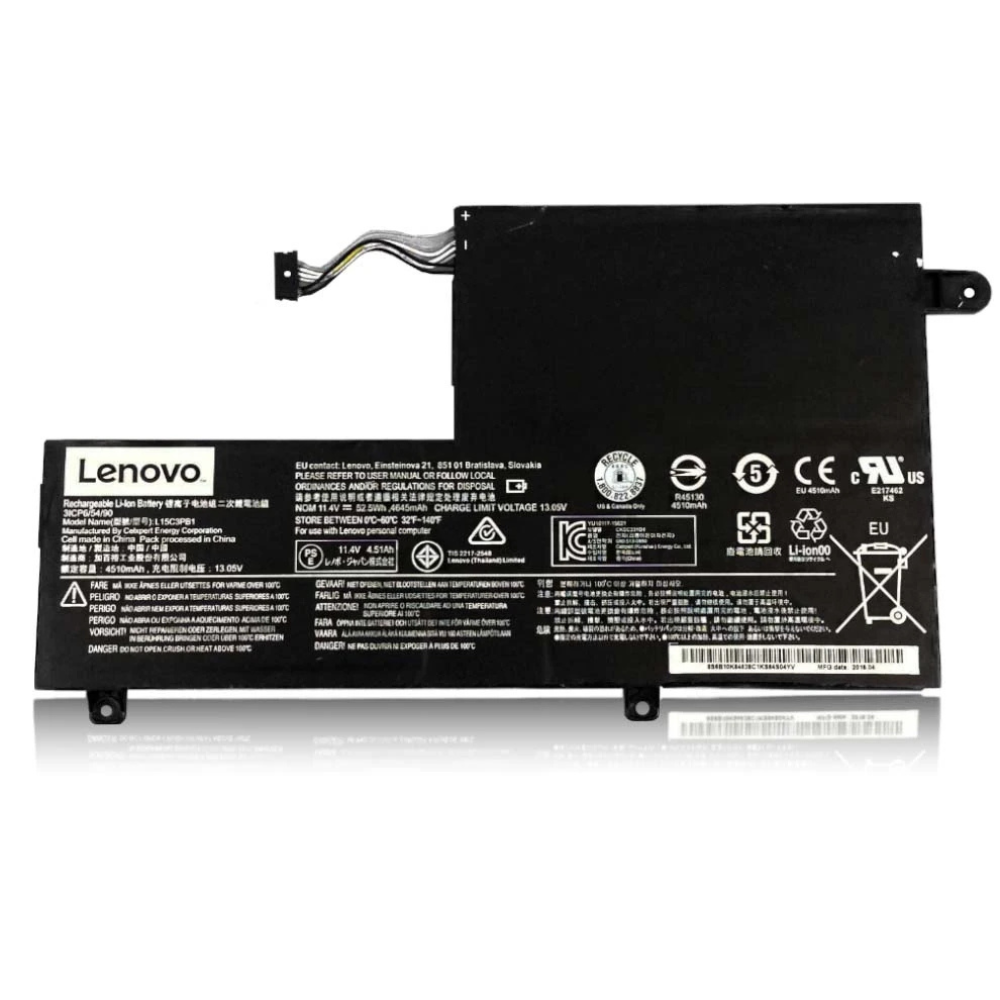
Best Lenovo ThinkPad X1 Carbon 5th Gen Battery Replacement Singapore
Is your business mobility compromised by a failing ThinkPad battery?
The ThinkPad X1 Carbon 5th Gen is the gold standard for business ultrabooks, prized for its lightweight durability and keyboard comfort. However, after years of boardroom meetings and travel, the internal battery (Model 20HR/20HQ) inevitably degrades. At StarLabs Singapore, we specialize in restoring your X1 Carbon to its original “all-day” battery life with genuine-grade battery replacements.
- Supported Models: ThinkPad X1 Carbon Gen 5 (Type 20HR, 20HQ)
- Service Time: 30 – 45 Minutes
- Warranty: 6 – 12 Months
- Location: Bugis, Bedok, Bukit Panjang, Queen St
Model Spotlight: The X1 Carbon 5th Gen
Released in 2017, the 5th Gen X1 Carbon (identified by machine types 20HR and 20HQ) introduced narrower bezels and Thunderbolt 3. It relies on a specific internal lithium-polymer battery to maintain its ultra-portable profile.
Key Battery Specifications:
- Capacity: 57Wh (Standard)
- Technology: 3-Cell Lithium-Polymer with Rapid Charge support (0-80% in ~60 mins).
- Compatible Part Numbers: 01AV430, 01AV429, SB10K97587.
Comparison: Gen 5 vs. Newer Models
| Feature | X1 Carbon Gen 5 | X1 Carbon Gen 6 | X1 Yoga Gen 2 |
|---|---|---|---|
| Battery Capacity | 57Wh | 57Wh (Slide Dock) | 56Wh |
| Connector Type | Standard Cable | Proprietary Dock | Standard Cable |
| Typical Lifespan | 3-4 Years | 3-4 Years | 3 Years (Heat intensive) |
Critical Signs of Battery Failure
Unlike software glitches, hardware battery failure on the X1 Carbon often presents physical or critical operational signs. If you notice these, immediate replacement is recommended to prevent damage to the motherboard.
1. The “0% Available” Error
A common issue with the 5th Gen model is when Windows reports “Plugged in, not charging” or stays stuck at 0% despite being plugged in for hours. While this can sometimes be a Thunderbolt firmware issue, it frequently indicates a dead internal cell.
2. Trackpad Stiffness (Swelling Warning)
The battery resides directly underneath the trackpad and wrist rest. If your battery cells begin to swell (bloat) due to age, they push upwards. This often manifests as a stiff trackpad that is hard to click or a keyboard that bulges slightly. Danger: Do not press down hard on a swollen battery; bring it to StarLabs immediately.
3. Instant Shutdowns
If your laptop shuts down the moment the AC adapter is unplugged—even if it said “100% charged” a moment ago—the battery has lost its ability to hold voltage under load.
Maximizing Business Productivity
Once you have a fresh battery installed, optimizing your settings can extend its lifespan significantly. The X1 Carbon is equipped with enterprise-grade power management features.
Use Lenovo Vantage Thresholds:
If you use your ThinkPad primarily at a desk plugged into a dock, keeping the battery at 100% constantly induces stress. Open the Lenovo Vantage app and navigate to Power settings. Enable “Battery Charge Threshold” and set it to stop charging at 80%. This simple step can double the usable lifespan of your lithium cells.
Thunderbolt Firmware Check:
The 5th Gen X1 Carbon has a known issue with Thunderbolt controller firmware that can sometimes mimic battery charging problems. We recommend updating your Thunderbolt firmware via Lenovo System Update to ensure efficient power delivery.
DIY Guide: How to Replace a ThinkPad X1 Carbon Battery
Note: This guide outlines the procedure for the X1 Carbon Gen 5 (2017). Ensure you have the correct Part Number (usually 01AV430) before starting.
⚠️ Disclaimer: ThinkPad X1 Carbon components are tightly packed. Opening the case may void active Lenovo warranties. Lithium-ion batteries are fire hazards if punctured. Proceed with caution or contact StarLabs for professional help.
Tools You Will Need:
- Precision Screwdriver (Phillips #00 or #0)
- Plastic Spudger / Pry Tool
- Anti-static wrist strap (Highly Recommended for X1 Series)
Step 1: Preparation
Disable the internal battery in BIOS (Config -> Power -> Disable Built-in Battery) for safety, though shutting down completely is often sufficient for a quick swap. Unplug the AC adapter.

Step 2: Remove the Bottom Case

Loosen the 5 captive screws on the bottom of the laptop. Note that on the X1 Carbon, these screws stay attached to the cover (don’t try to pull them out fully).
Step 3: Release the Clips

Start prying from the hinge area. The X1 Carbon has small plastic clips along the edges. Lift the cover gently away from the ports to avoid bending the magnesium alloy chassis.
Step 4: Disconnect the Battery (Critical)

Locate the battery connector. It is a multi-pin block connected to the motherboard. Important: The X1 Carbon connector pulls up or slides out depending on the revision. Use a plastic tool to disconnect it without touching motherboard components.
Step 5: Remove and Swap

Remove the screws securing the battery pack (usually 4-5 screws). Lift the old battery out. Insert the new battery, ensuring the screw holes align perfectly with the chassis posts.
Step 6: Reassemble and Calibrate

Align the bottom cover clips and press down until you hear them snap. Tighten the captive screws. Plug in the AC adapter (this resets the battery safety logic) and power on. Charge to 100% uninterrupted.
Business Critical Repair?
Don’t risk downtime with a stripped screw or fragile ribbon cable. Our technicians can swap your X1 battery in under 45 minutes.
Frequently Asked Questions
Can I upgrade to a larger battery in the X1 Carbon 5th Gen?
No, the 5th Gen chassis is precision-milled to fit the specific 57Wh battery. There is no physical space for a larger capacity cell. However, a fresh 57Wh replacement restores the original 8-10 hour runtime.
Does the new battery support Rapid Charge?
Yes. Our batteries are fully compatible with Lenovo’s Rapid Charge technology, allowing you to regain 80% capacity in just one hour of charging, keeping your workflow uninterrupted.
Is the battery glued in?
Thankfully, no. Unlike some modern ultrabooks, the X1 Carbon Gen 5 uses screws to secure the battery. It is not glued, making the replacement process cleaner and safer if done correctly.
Why is my battery not charging even after replacement?
If a new battery isn’t detected, check two things: 1) Ensure the connector is fully seated. 2) Reset the laptop by inserting a paperclip into the “Emergency Reset Hole” on the bottom case. If issues persist, it could be a motherboard charging IC fault.
