
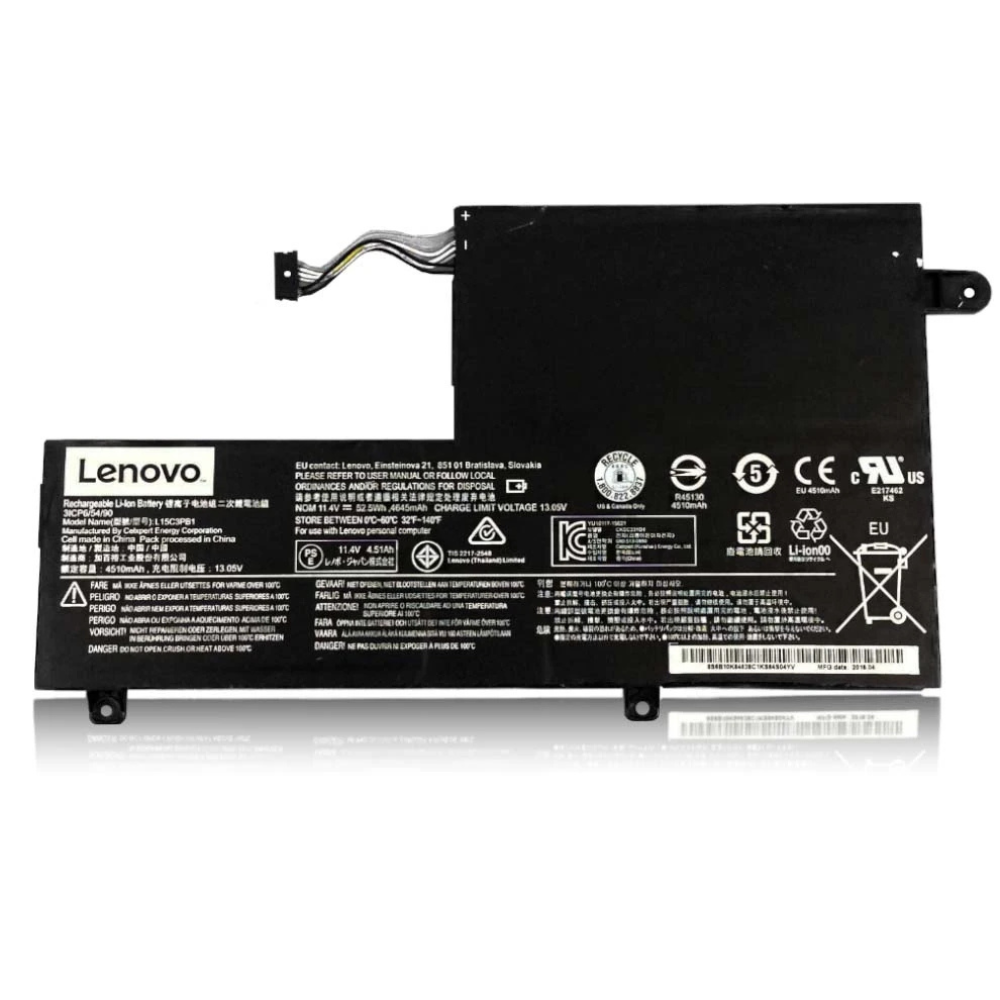
Best Lenovo ThinkPad X1 Carbon Gen 8 Battery Replacement Singapore
Is your flagship ultrabook tethered to the wall?
The ThinkPad X1 Carbon Gen 8 is the crown jewel of business laptops—ultra-light, durable, and powerful. However, the trade-off for its razor-thin profile is a compact 51Wh battery that endures high thermal stress. Over 3-4 years of boardroom meetings and international flights, these cells degrade, turning your mobile office into a desktop. At StarLabs Singapore, we restore the legendary mobility of your X1 Carbon Gen 8 with premium, safety-certified battery replacements.
- Supported Model: ThinkPad X1 Carbon Gen 8 (Type 20U9, 20UA)
- Service Time: 30 – 45 Minutes
- Warranty: 6 – 12 Months
- Location: Bugis, Bedok, Bukit Panjang, Queen St
Model Spotlight: The Cost of “Ultra-Thin”
The Gen 8 introduced minor thermal tweaks over the Gen 7, but the battery physics remain the same. High density in a small space creates unique challenges.
Why X1 Batteries Fail:
- Heat Concentration: The X1 Carbon’s chassis dissipates heat passively. During heavy tasks (like Zoom with background blur), the battery heats up, accelerating chemical decay.
- Cycle Count limits: The 51Wh battery is relatively small for a 4K or WQHD screen. Users charge it more often (cycles), reaching the 1000-cycle lifespan faster than thicker laptops.
- Swelling Risk: In a chassis this tight, even minor battery swelling can crack the trackpad glass or warp the keyboard deck permanently.
Signs Your X1 Carbon Needs Service
Beyond just “running out of power,” a failing battery in an X1 Carbon Gen 8 manifests in specific ways that affect business continuity:
- The 20% Plunge: The battery indicator is unstable, dropping from 20% to Critical Shutdown in seconds, risking unsaved work.
- Trackpad Stiffness: If clicking feels “mushy” or hard, the battery directly underneath is swelling. Stop using it immediately to prevent chassis damage.
- Slow Performance: To protect a failing battery, the BIOS may throttle the Intel Core i7 processor, making spreadsheets and emails laggy.
Comparison: Gen 8 vs Other Generations
| Feature | X1 Carbon Gen 8 | X1 Carbon Gen 9 | ThinkPad T14s |
|---|---|---|---|
| Battery Capacity | 51Wh (4-Cell) | 57Wh (Larger) | 57Wh |
| Complexity | Moderate (Tight Fit) | High (Dual Fan) | Easy |
| Connector Type | Proprietary Ribbon | Proprietary | Standard Wire |
The StarLabs Standard: We only use batteries that pass Lenovo’s stringent whitelist checks, ensuring your X1 Carbon retains its Rapid Charge capability (0-80% in 60 minutes).
DIY Guide: How to Replace a ThinkPad X1 Battery
Note: The X1 Carbon Gen 8 uses 5 “captive” screws (they don’t fall out) and precision clips. Force is your enemy here.
⚠️ Critical Safety: You MUST disable the built-in battery in the BIOS before opening the case. Skipping this can short-circuit the motherboard.
Tools You Will Need:
- Phillips #1 Screwdriver (Good quality to avoid stripping)
- Non-conductive Spudger (The chassis is conductive metal)
- Clean workspace (To protect the soft-touch finish)
Step 1: Disable Internal Battery (BIOS)
Restart your laptop. Repeatedly press F1 to enter BIOS Setup. Navigate to Config > Power > Disable Built-in Battery. Confirm “Yes”. The system will power off instantly.

Step 2: Loosen the Captive Screws

Loosen the 5 screws on the bottom cover. They will loosen but remain attached to the panel. This prevents you from losing these specialized screws.
Step 3: Unclip the Cover

Start from the hinge side. The clips here are angled. Gently pry upwards. Once the back is free, slide the cover slightly forward to disengage the front hooks.
Step 4: Disconnect the Battery

Even with BIOS disable, physically unplug the battery. The X1 connector has a pull-tab. Pull it horizontally toward the battery, not up.
Step 5: Remove and Swap

Remove the 4 screws securing the battery. Note that one screw is often hidden under a cable routing clip. Lift the old battery out and seat the new one firmly.
Step 6: Reactivate the System

Install the cover and tighten screws. Crucial: Connect your AC adapter. The laptop will NOT turn on until it detects power from the charger (this resets the BIOS battery lock).
Too risky for DIY?
The X1 Carbon is an expensive machine. If you’re worried about snapping clips or the BIOS reset, let our experts handle it.
Important: Resetting the Battery Gauge
After installation, your X1 Carbon might still show the old battery health data until calibrated.
1. Use the Reset Tool
Open Lenovo Vantage, go to Device > Power > Battery Gauge Reset. Run this tool overnight. It will fully charge and discharge the battery to learn its true capacity.
2. Prevent Future Swelling
If you use your X1 Carbon with a Thunderbolt Dock 24/7, enable the “Charge Threshold” to stop charging at 80%. This is the single most effective way to prevent swelling in the X1 series.
Frequently Asked Questions
Will a new battery restore the “Rapid Charge” feature?
Yes. Our batteries are built with the correct internal resistance and temperature sensors to allow the 65W charger to push high current safely, restoring your 0-80% in 1 hour capability.
How much does an X1 Carbon Gen 8 battery replacement cost?
X1 Carbon parts are premium components. Replacement costs generally range between $XX and $XX SGD. We recommend checking the model number (Type 20U9) on the bottom sticker before contacting us for a quote.
Why does my laptop feel hot near the escape key?
That is where the charging circuit and CPU are located. A degrading battery generates excess heat during charging. Replacing it often lowers the palm rest temperature significantly.
How long does the service take?
For the X1 Carbon Gen 8, we allocate 30-45 minutes. We take extra care with the carbon fiber clips to ensuring the laptop closes perfectly flush after reassembly.
