
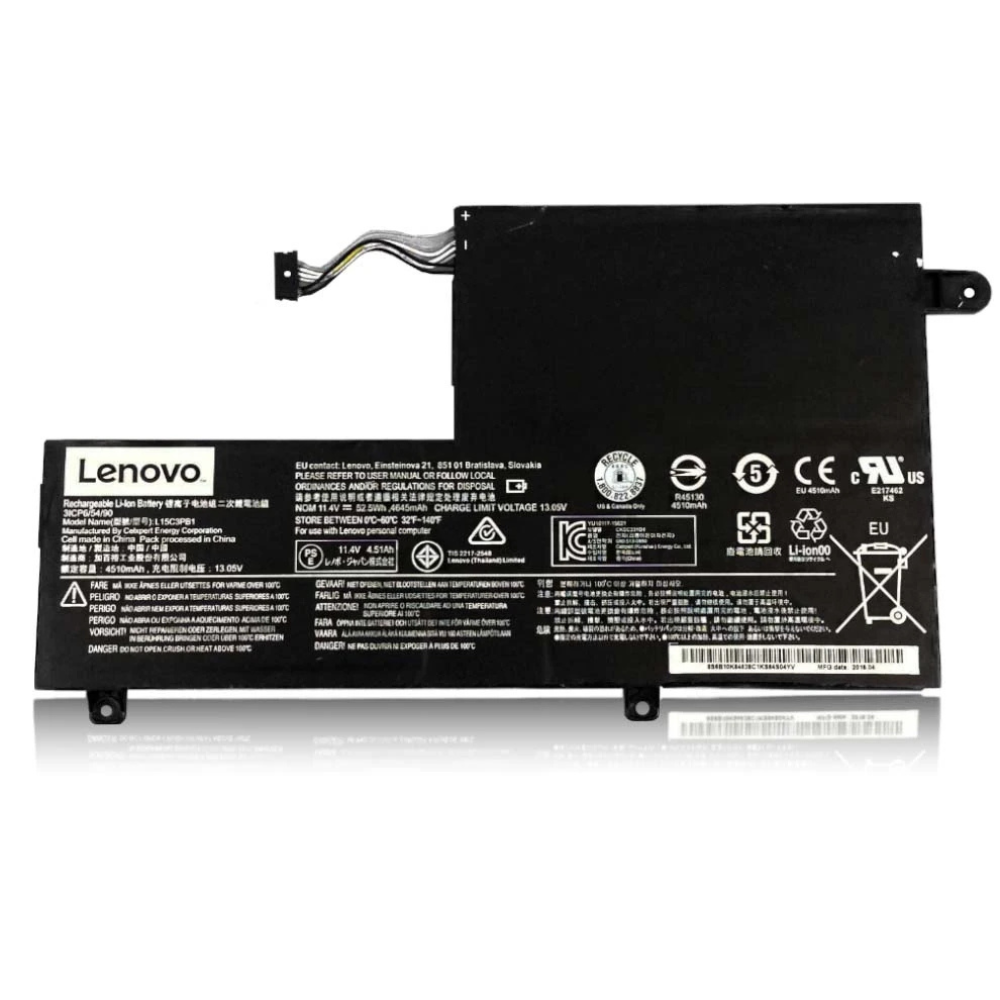
Best ThinkPad X1 Extreme Battery Replacement Singapore
Is your ThinkPad X1 Extreme throttling under heavy loads?
The ThinkPad X1 Extreme is a mobile workstation designed for intense tasks like 4K video editing, compiling code, and 3D rendering. However, its high-performance H-Series Intel processor and NVIDIA GTX/RTX graphics rely heavily on a stable voltage supply. When the battery degrades, the system firmware automatically throttles performance (reduces CPU speed) to prevent sudden shutdowns. At StarLabs Singapore, we provide OEM-grade battery replacements to restore the raw power and mobility of your X1 Extreme.
- Supported Models: X1 Extreme Gen 1 / Gen 2 / Gen 3 / Gen 4 / Gen 5
- Battery Capacity: 80Wh (Gen 1-3) / 90Wh (Gen 4-5)
- Service Time: 45 – 60 Minutes
- Warranty: 6 – 12 Months
- Location: Bugis, Bedok, Bukit Panjang, Queen St
The Heat Factor: Why X1 Extreme Batteries Swell
The X1 Extreme packs immense power into a thin chassis. The heat generated by the dedicated GPU and CPU can reach temperatures over 90°C inside the case. Over time, this heat exposure can cause the battery cells to degrade and physically expand (swell).
Signs of a Swollen Battery:
- Stiff Trackpad: The battery sits directly under the trackpad. If it swells, clicking becomes difficult.
- Keyboard Bulge: You may notice the keyboard deck lifting slightly in the center.
- Gaping Seams: The bottom cover may start to separate from the chassis.
Warning: If you see these signs, stop using the laptop immediately to avoid damage to the motherboard.
Model Spotlight: X1 Extreme vs. The Rest
The X1 Extreme shares its DNA with the ThinkPad P1, but uses consumer-focused NVIDIA GeForce graphics. This distinction affects power draw significantly compared to the ultralight X1 Carbon.
Comparison: ThinkPad X1 Series
| Feature | X1 Extreme (Gen 1-3) | X1 Carbon (Gen 9) | ThinkPad P1 (Gen 2) |
|---|---|---|---|
| Battery Size | 80Wh (Large) | 57Wh (Medium) | 80Wh (Same as X1E) |
| Processor | 45W H-Series (High Power) | 15W U-Series (Low Power) | Xeon / H-Series |
| Graphics | GeForce GTX / RTX | Integrated Intel Iris | NVIDIA Quadro |
The StarLabs Advantage: Safe, Stable Power
Replacing the battery on an X1 Extreme is not just about capacity; it’s about safety. Our replacement batteries feature:
- Thermal Protection Sensors: To monitor cell temperature and cut power if heat levels become critical.
- Rapid Charge Support: Compatible with Lenovo’s 135W and 170W slim-tip chargers.
- Firmware Handshake: Ensures the ThinkPad BIOS recognizes the battery, avoiding the dreaded “Battery not detected” boot error.
DIY Guide: How to Replace a ThinkPad X1 Extreme Battery
Note: This guide is for Gen 1, 2, and 3. Gen 4/5 have a slightly different internal layout but similar steps.
⚠️ Crucial Step: ThinkPads have an internal battery. You MUST disable it in the BIOS before opening the case to prevent shorting the motherboard.
Tools You Will Need:
- Phillips #0 or #1 Screwdriver (Captive screws)
- Plastic Pry Tool / Spudger
Step 1: Disable Built-in Battery (BIOS)
Restart your laptop. Press F1 repeatedly to enter BIOS. Go to Config > Power > Disable Built-in Battery. Select “Yes”. The laptop will turn off immediately. Unplug the AC adapter.

Step 2: Remove the Bottom Cover

Loosen the captive screws on the bottom cover (they will not fall out). Lift the cover from the hinge side first.
Step 3: Disconnect Battery & Speakers

Disconnect the battery cable from the motherboard. Note: On X1 Extreme Gen 1/2, the speaker cables often route over or around the battery. You may need to gently unclip the speakers to free the battery.
Step 4: Remove the Old Battery

Remove the 4-6 screws holding the battery frame. Lift the battery out, being careful not to snag the speaker wires.
Step 5: Insert New Battery

Place the new 80Wh battery into the bay. Route the speaker cables back into their guides. Secure the battery screws and plug in the connector.
Step 6: Reassemble and Wake Up

Snap the bottom cover back on and tighten screws. Important: The laptop will not turn on with the power button yet. You MUST plug in the AC adapter to “wake up” the system from the BIOS disable mode.
Worried about the BIOS settings?
ThinkPads are built like tanks but have sensitive electronics. If you aren’t comfortable entering BIOS or handling internal ribbons, let our experts handle it.
Frequently Asked Questions
My X1 Extreme gets very hot. Is this the battery’s fault?
High heat is normal for this workstation due to the CPU/GPU, but a failing battery can make it worse by generating excess heat during charging. If your laptop feels hot even when sleeping or lightly used, the battery may be failing.
Does the 4K OLED screen affect battery life?
Yes, significantly. The 4K OLED panel can reduce battery life by 30-40% compared to the FHD model. If you have the OLED version, a healthy 80Wh battery is critical to getting more than 2-3 hours of unplugged time.
Can I upgrade to a larger battery?
Generally, no. The space inside the X1 Extreme is strictly molded. You must use the specific 80Wh (Gen 1-3) or 90Wh (Gen 4-5) battery designed for your generation. We will match the exact part number for you.
Will my BIOS settings be reset?
Disabling the built-in battery in BIOS is temporary. Once you reconnect the AC adapter, the settings revert to normal. Your data and BIOS configurations remain safe.
