
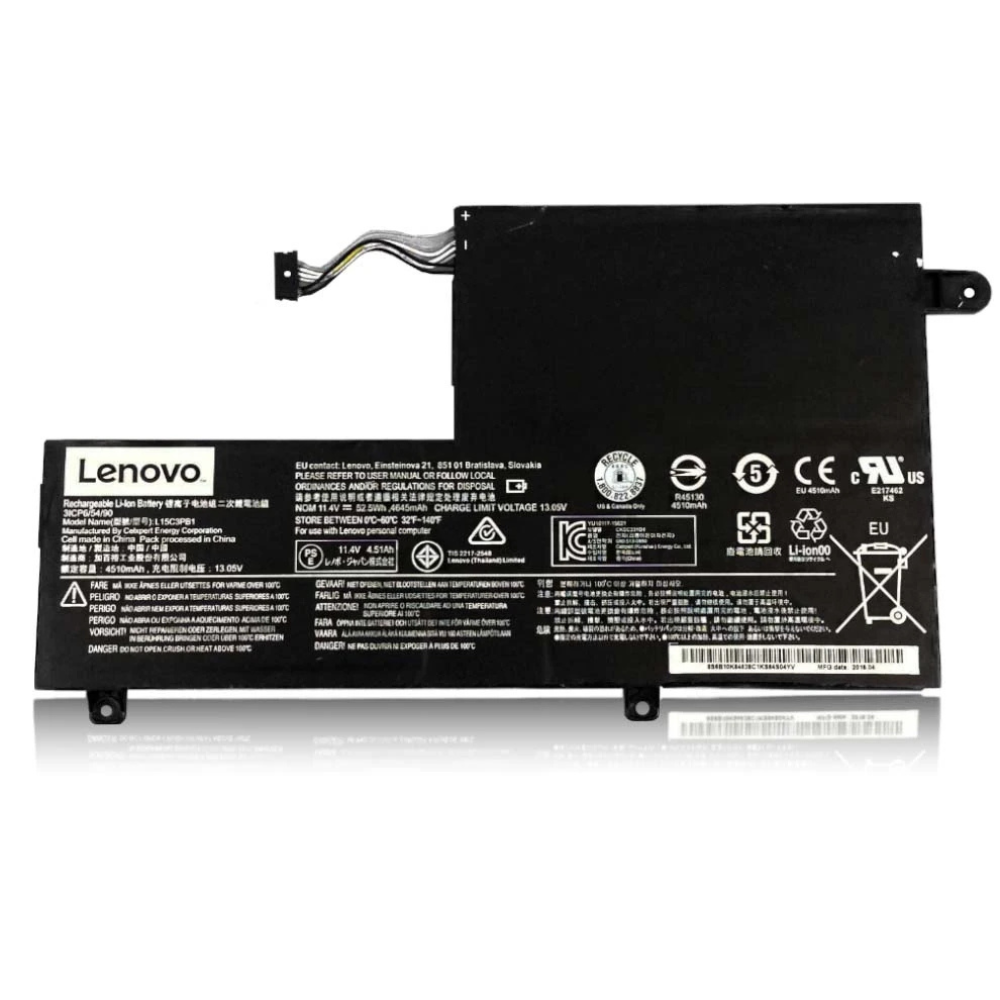
Best Lenovo ThinkPad X250 Battery Replacement Singapore
Is your “Power Bridge” failing to keep you mobile?
The ThinkPad X250 is a legendary road warrior, famous for its Power Bridge Technology that combines two batteries for marathon runtime. However, having two batteries means double the potential for wear. Whether your internal battery isn’t holding a charge or your external unit is dead, StarLabs Singapore provides genuine replacements to restore your X250’s all-day capability.
- Supported Models: ThinkPad X250 (Type 20CL, 20CM)
- Service Time: 30 Minutes
- Warranty: 6 – 12 Months
- Location: Bugis, Bedok, Bukit Panjang, Queen St
Model Spotlight: Internal vs. External Batteries
The X250 is unique because it uses two separate batteries simultaneously. Confusion often arises about which one needs replacing.
Decoding the Dual System:
- Battery 1 (Internal): A 3-Cell (23Wh) battery screwed inside the front chassis. Part No: 45N1113. This requires tools to replace.
- Battery 2 (External): A removable rear battery. Available in 3-cell (flush fit) or 6-cell (cylindrical bump) for extended life. Part No: 68 or 68+.
- Combined Capacity: Up to 95Wh total (with the 6-cell extended option).
Which Replacement Do You Need?
| Feature | Internal Battery | External (Standard) | External (Extended) |
|---|---|---|---|
| Capacity | 23Wh (3-Cell) | 23Wh (3-Cell) | 48Wh or 72Wh (6-Cell) |
| Installation | Requires Disassembly | Instant Swap (Latch) | Instant Swap (Latch) |
| Weight | Light | Light (Flush fit) | Heavier (Protrudes) |
Diagnosing “Battery 1” vs. “Battery 2” Errors
Windows treats the two batteries as separate entities. Diagnosing which one is faulty can be tricky.
“Battery 1: Not Present”
If you see this message in your taskbar, your Internal Battery is either completely dead, disconnected, or swollen. The internal battery is typically designated as Battery 1 by the Lenovo firmware.
System Dies During Hot-Swap
The main benefit of the X250 is “Hot Swapping”—removing the external battery while the laptop is running. If your laptop shuts down immediately when you pull the rear battery, it means your Internal Battery has zero charge or has failed. It is unable to “bridge” the power gap.
Mastering the Hot-Swap Feature
To get the most out of your X250, you should maintain both batteries, but prioritize the internal one’s health.
The Discharge Order:
The ThinkPad X250 is programmed to drain the External Battery (Battery 2) first. It only switches to the Internal Battery when the external one is empty. This logic protects the harder-to-replace internal battery from wear cycles.
Storage Tip:
If you use your X250 docked most of the time, we recommend removing the external battery entirely to save its chemistry, relying only on the internal one as a UPS (Uninterruptible Power Supply).
DIY Guide: Replacing the Internal Battery
Note: Replacing the external battery requires no tools—just slide the latches. This guide focuses on the Internal Battery.
⚠️ Safety Warning: You MUST disable the internal battery in BIOS before opening the case. Unlike other laptops, the X250 has live voltage inside even if unplugged.
Tools You Will Need:
- Phillips Head Screwdriver (#0 or #1)
- Plastic Pry Tool (Guitar pick works well)
Step 1: Disable Built-in Battery (Mandatory)
1. Restart laptop and press F1 to enter BIOS.
2. Go to Config -> Power.
3. Select Disable Built-in Battery and confirm. The laptop will turn off immediately.

Step 2: Remove External Battery

Flip the laptop over. Slide the two latches outwards to unlock the rear battery. Slide the battery out of its slot.
Step 3: Remove the Base Cover

Loosen the 8 screws on the bottom cover. Note that these screws are “captive” and won’t fall out. Use a pry tool to pop the clips around the edges, starting from the battery bay.
Step 4: Disconnect Internal Battery

The internal battery is at the front (palm rest area). Remove the 3 screws holding it down. Gently lift the battery and disconnect the cable from the motherboard.
Step 5: Install and Reassemble

Connect the new battery and screw it in. Snap the bottom cover back on and tighten the screws. Slide the external battery back in.
Step 6: Power Bridge Check

Plug in the AC adapter. This wakes the internal battery from its disabled state. Boot into Windows and ensure both batteries are detected.
Need Both Batteries Replaced?
We stock both the internal 3-cell and the massive 72Wh external extended battery. Refresh your X250 completely.
Frequently Asked Questions
Can I use the X250 without the internal battery?
Yes, the laptop will function perfectly fine with just the external battery. However, you lose the “Hot Swap” capability and the protection against accidental cable unplugging.
Does the X250 support the larger 68+ battery?
Absolutely. The 6-cell (68+) battery is thicker and creates a slight tilt for typing, which many users find ergonomic. It triples the runtime compared to the standard flush battery.
How do I know if my internal battery is swollen?
On the X250, a swollen internal battery will push up against the trackpad or the palm rest, causing the mouse buttons to become hard to click. If you feel this, bring it in for service immediately.
