
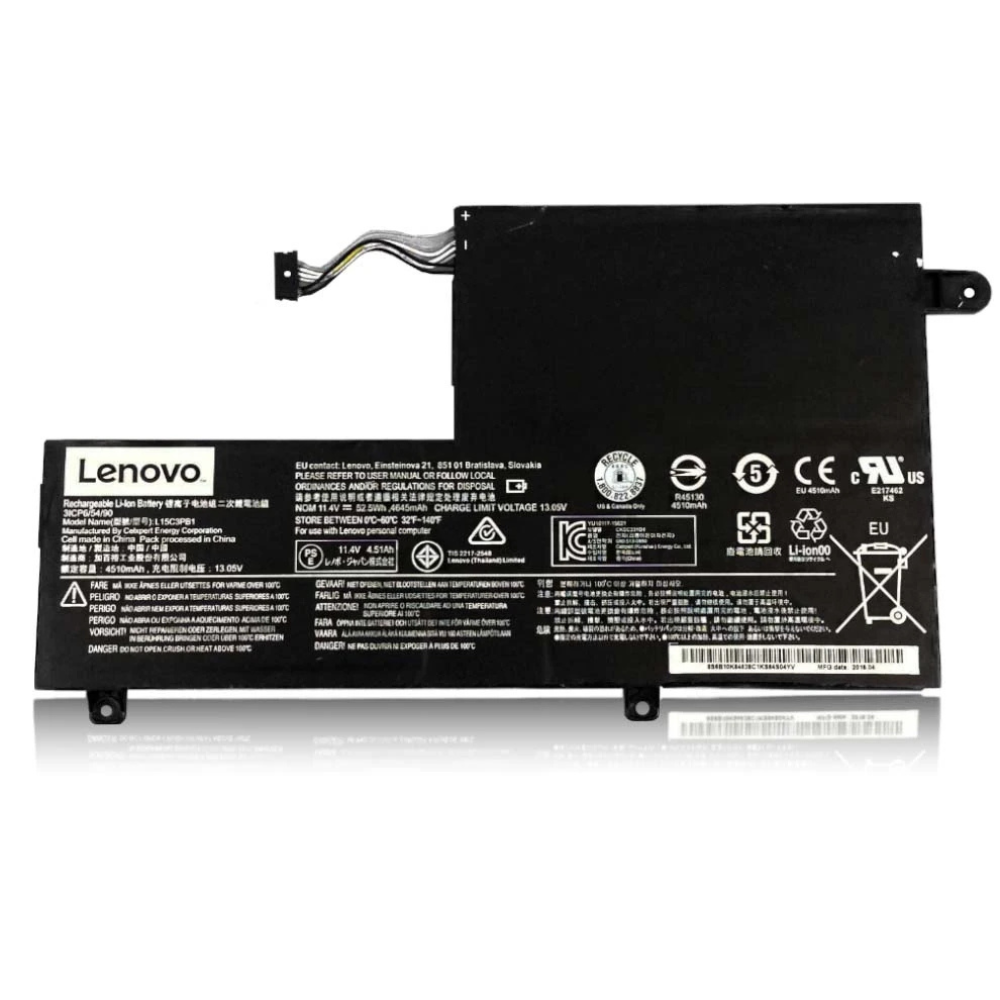
Best Lenovo Yoga Slim 7 Pro Battery Replacement Singapore
Is your Yoga Slim 7 Pro struggling to keep up with your creative workload?
The Lenovo Yoga Slim 7 Pro is a favorite among creators for its stunning 2.8K display and powerful H-series processors. However, these high-performance components demand significant power, often leading to battery degradation faster than in standard ultrabooks. At StarLabs Singapore, we provide premium battery replacements that restore the stamina your laptop needs to handle rendering, editing, and multitasking without being tethered to a wall socket.
- Supported Models: Yoga Slim 7 Pro (14ACH5 / 14IHU5 / 14ITL5 / 14IAP7)
- Battery Type: High-Capacity 61Wh (L19C4PH3 / L19D4PH3)
- Service Time: 45 – 60 Minutes
- Warranty: 6 – 12 Months
- Location: Bugis, Bedok, Bukit Panjang, Queen St
Warning Signs: When to Replace Your Yoga Slim 7 Pro Battery
Unlike a sudden failure, battery health usually declines gradually. However, the Yoga Slim 7 Pro’s compact chassis can sometimes mask physical symptoms. Look out for these critical signs:
Your battery indicator drops suddenly (e.g., from 80% to 40%) in minutes. This indicates a “dead cell” inside the battery pack that can no longer hold a charge.
If your touchpad becomes hard to click or lifts slightly, it is a dangerous sign of a swollen battery pressing upwards against the trackpad mechanism.
Model Spotlight: Understanding the Yoga Slim 7 Pro
The Yoga Slim 7 Pro bridges the gap between a portable ultrabook and a workstation. Its internal design is dense, and understanding its power consumption helps explain why battery health is critical.
Key Specifications & Battery Drain Factors:
- High-Res Displays: The 2.2K or 2.8K OLED panels (90Hz/120Hz) are beautiful but power-hungry. An OLED screen showing bright white backgrounds consumes 20-30% more power than standard IPS panels.
- H-Series Processors: Unlike standard “U” series chips, the Ryzen 5000/6000HS or Intel H-series chips run at higher wattages (35W-45W), putting immense strain on aging batteries.
- Heat Management: The dual-fan cooling system is effective, but residual heat in the slim metal chassis can degrade lithium-ion chemistry faster if the laptop is often used on laps or soft surfaces.
Comparison: Yoga Series Battery Specs
| Feature | Yoga Slim 7 Pro | Slim 7 Carbon | Yoga 9i (2-in-1) |
|---|---|---|---|
| Typical Capacity | 61Wh | 50Wh | 60Wh – 75Wh |
| Video Playback | Approx 8-10 Hours | Approx 7-8 Hours | Approx 10-12 Hours |
| Common Issue | High Drain on 90Hz+ | Capacity limitation | Hinge cable wear |
The StarLabs Difference: High-Density Cells
Not all batteries are created equal. Cheap aftermarket batteries often use low-density cells that cannot sustain the voltage requirements of the Yoga Slim 7 Pro’s AMD Ryzen or Intel Core processors. This leads to random shutdowns even when the battery reads 20%.
At StarLabs, we use Tier-1 Lithium-Polymer cells that match the original specification. This ensures your laptop supports:
- Consistent voltage delivery for “Performance Mode”.
- Proper communication with Lenovo Vantage software.
- Reliable Rapid Charge support.
DIY Guide: How to Replace a Lenovo Yoga Slim 7 Pro Battery
Note: This guide applies to most Yoga Slim 7 Pro models (14ACH5, 14IHU5). The internal layout is compact, so patience is key.
⚠️ Disclaimer: Opening your laptop case may void your official warranty. Laptop batteries contain lithium-ion chemicals which can be fire hazards if punctured. If you are unsure, please contact StarLabs for professional assistance.
Tools You Will Need:
- Torx T5 Screwdriver (Essential for Lenovo Yoga series)
- Plastic Pry Tool / Spudger
- Anti-static wrist strap (Recommended)
Step 1: Preparation
Shut down your Yoga Slim 7 Pro completely. Unplug the AC adapter and remove any USB dongles or peripherals.

Step 2: Remove the Bottom Case

Flip the laptop over. Use your T5 Torx screwdriver to remove the screws securing the back panel. Note: The screws near the hinge are often longer than the others—keep them separate.
Step 3: Release the Clips

Insert your plastic pry tool into the seam near the hinge (ventilation area). Gently slide the tool around the edges to pop the internal clips. The aluminum cover can be sharp, so be careful.
Step 4: Disconnect the Battery Connector (Critical Step)

Locate the large L-shaped or rectangular battery. Follow the multi-colored wires to the motherboard connector.
Action: Use your fingernail or a plastic tool to gently slide the metal clip back (if present) and pull the connector block out. Never pull on the wires directly.
Step 5: Remove and Swap

Unscrew the Phillips screws holding the battery frame. Lift the old battery out, ensuring you don’t snag any speaker cables routed nearby.
Installation: Place the new battery in, screw it down, and firmly reconnect the plug.
Step 6: Reassemble and Calibrate

Snap the aluminum cover back on and replace the screws. Plug in your charger immediately—the laptop may not turn on without AC power after a battery disconnect. Charge to 100% to calibrate.
Need Help with Installation?
The Yoga Slim 7 Pro is tightly packed. If you are worried about damaging the aluminum chassis or internal cables, let us handle it.
Frequently Asked Questions
Why does my Yoga Slim 7 Pro battery drain while sleeping?
This is a common issue related to “Modern Standby” (S0 sleep state) where the laptop stays connected to the network. While software updates can help, a degraded battery makes the drain feel much worse. A fresh battery ensures you have enough capacity to handle standby times without waking up to a dead laptop.
How much does a Yoga Slim 7 Pro battery replacement cost?
Price depends on the specific voltage of your model (61Wh vs others). Generally, costs range between $XX and $XX SGD. Contact us via WhatsApp with your model number (e.g., 14ACH5) for an instant quote.
Does the new battery support Lenovo Rapid Charge Express?
Yes. Our batteries are fully compatible with Lenovo’s Rapid Charge protocols, allowing you to gain approximately 3 hours of runtime with just a 15-minute charge, provided you use the original 65W or 95W USB-C charger.
Will I lose my data during the battery replacement?
No. Replacing the battery does not touch the SSD or hard drive where your data is stored. However, we always recommend backing up important files before any hardware repair as a safety precaution.
